Install Zeus on macOS
Zeus requires macOS 15 or newer. The current DMG is a universal build for Apple silicon and Intel Macs.
v0.3.0 is ad-hoc signed, not Developer ID signed or notarized. That is why macOS shows a security warning. Continue only if you downloaded the DMG from the official nnayz/zeus GitHub release.
The annotated screens below illustrate macOS 15. Their spacing may differ slightly on your Mac, but the button and menu labels are the ones to look for.
1. Download the DMG
Download the latest universal installer:
Or copy the direct download URL:
https://github.com/nnayz/zeus/releases/download/v0.3.0/zeus-0.3.0-universal.dmg The file is named zeus-{latest.version}-universal.dmg. Open it when the download finishes.
2. Move Zeus to Applications
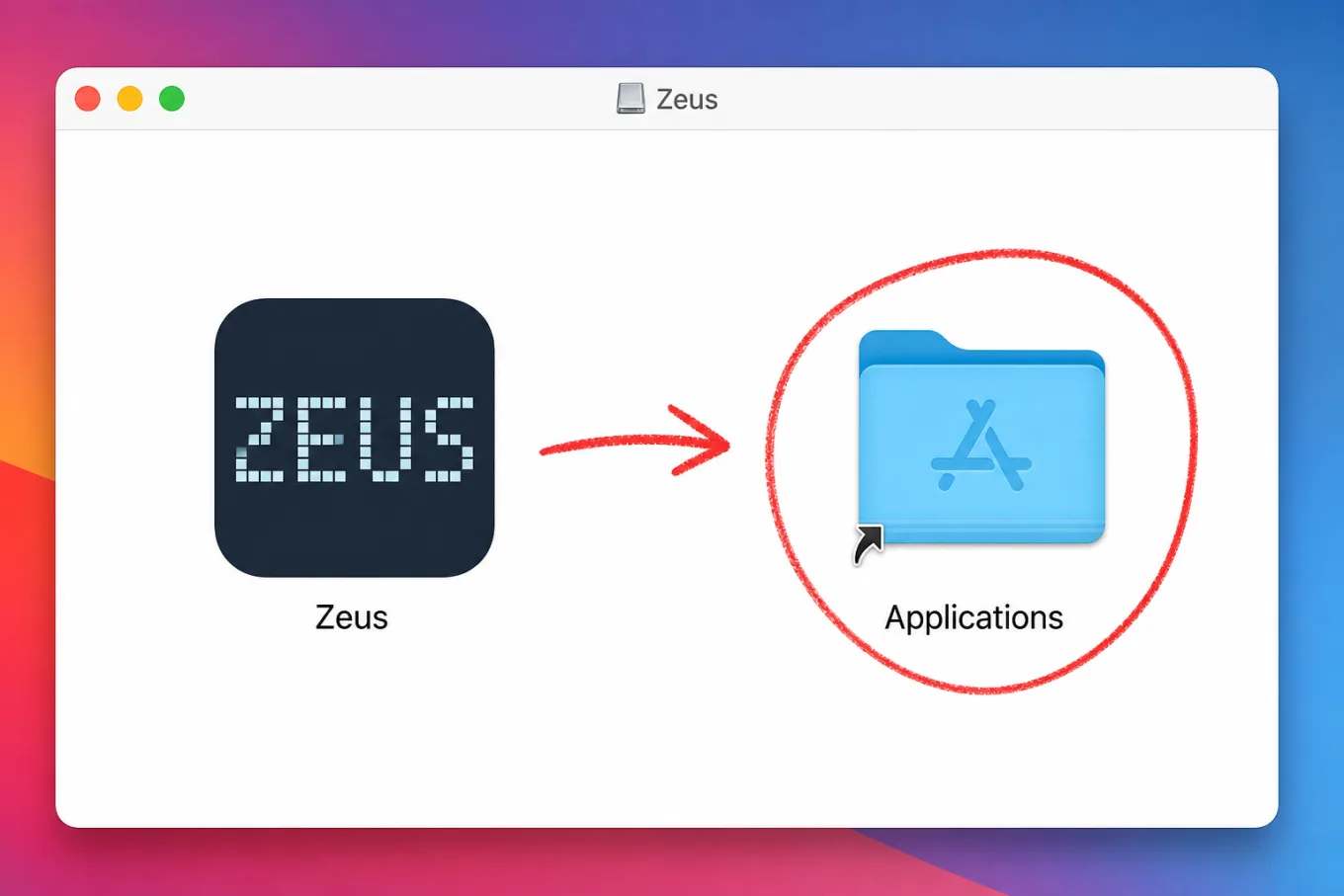
In the installer window, drag Zeus onto the Applications folder. Wait for the copy to finish, then eject the Zeus disk image.
3. Open Zeus from Finder
Open Finder → Applications. Control-click or right-click Zeus, then choose Open. If a confirmation dialog appears, choose Open again. macOS remembers this exception, so future launches work with a normal double-click.
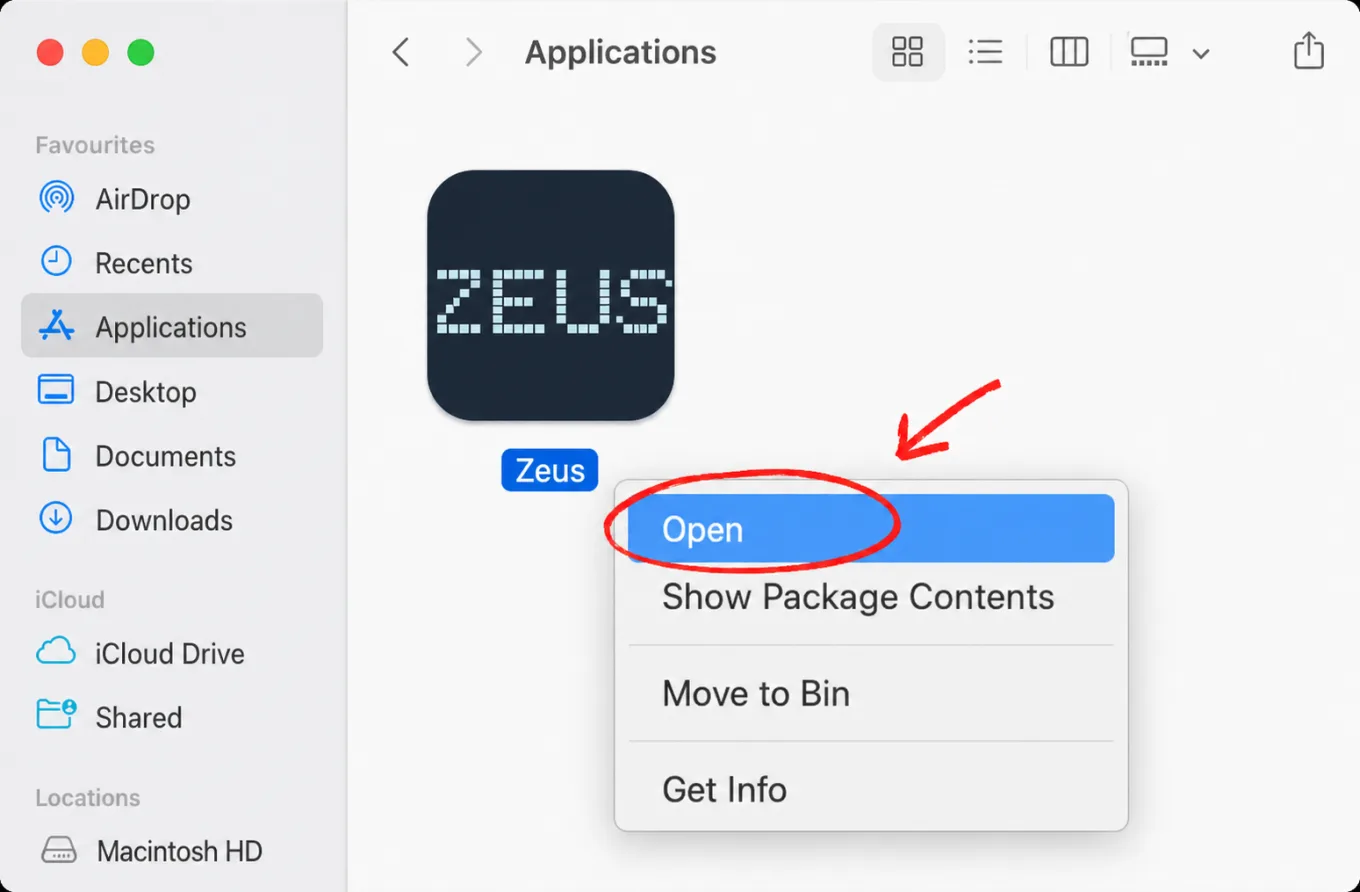
If Zeus opens, installation is complete. You do not need a Terminal command, and you should not disable Gatekeeper or remove quarantine attributes globally.
If macOS still blocks Zeus
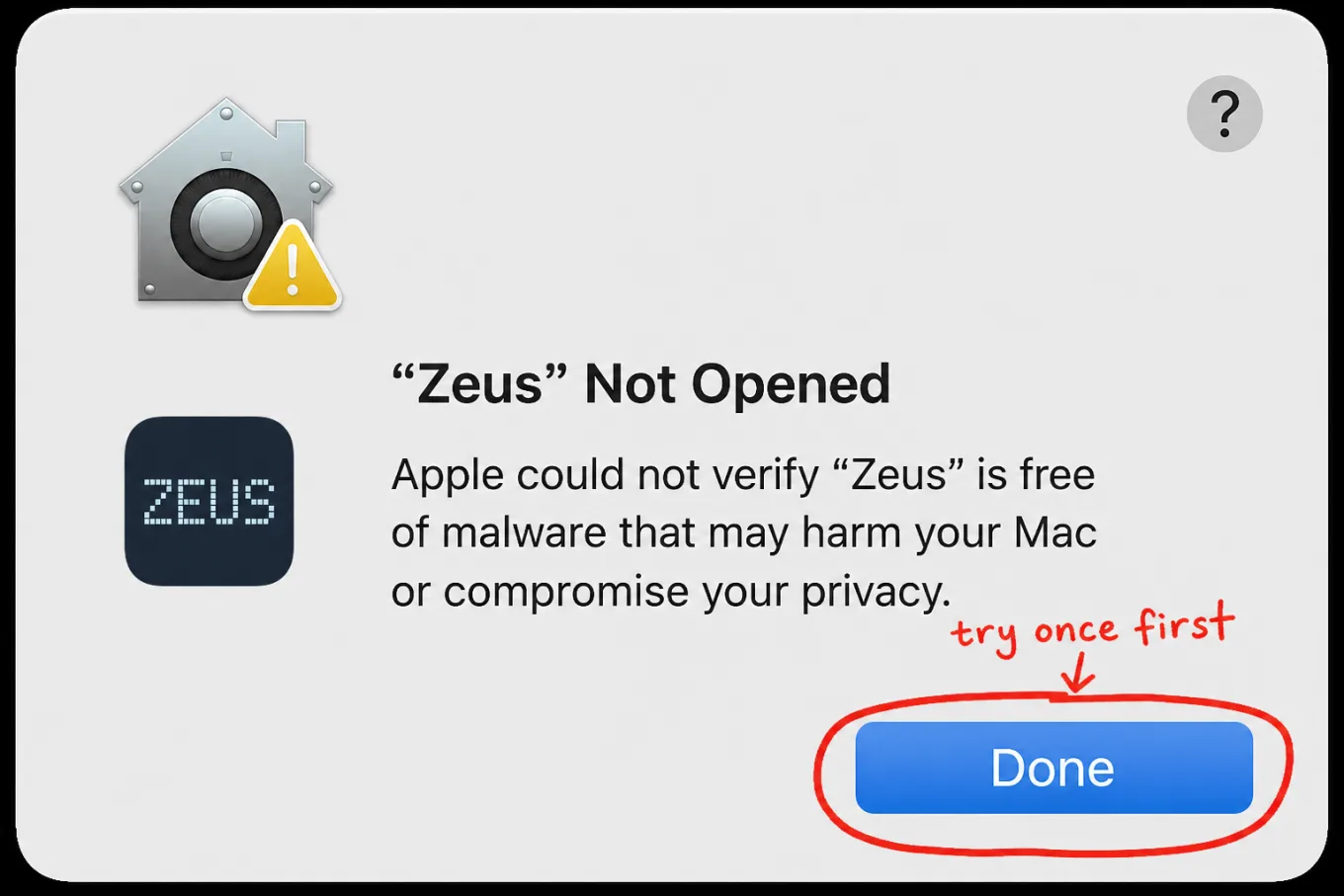
- Double-click Zeus once. When the “Zeus” Not Opened warning appears, click Done. This records the blocked launch so macOS can offer a one-app exception.
- Open Apple menu → System Settings → Privacy & Security. Scroll down to Security, find the message that Zeus was blocked, and click Open Anyway. The button is available for about an hour after the blocked launch.
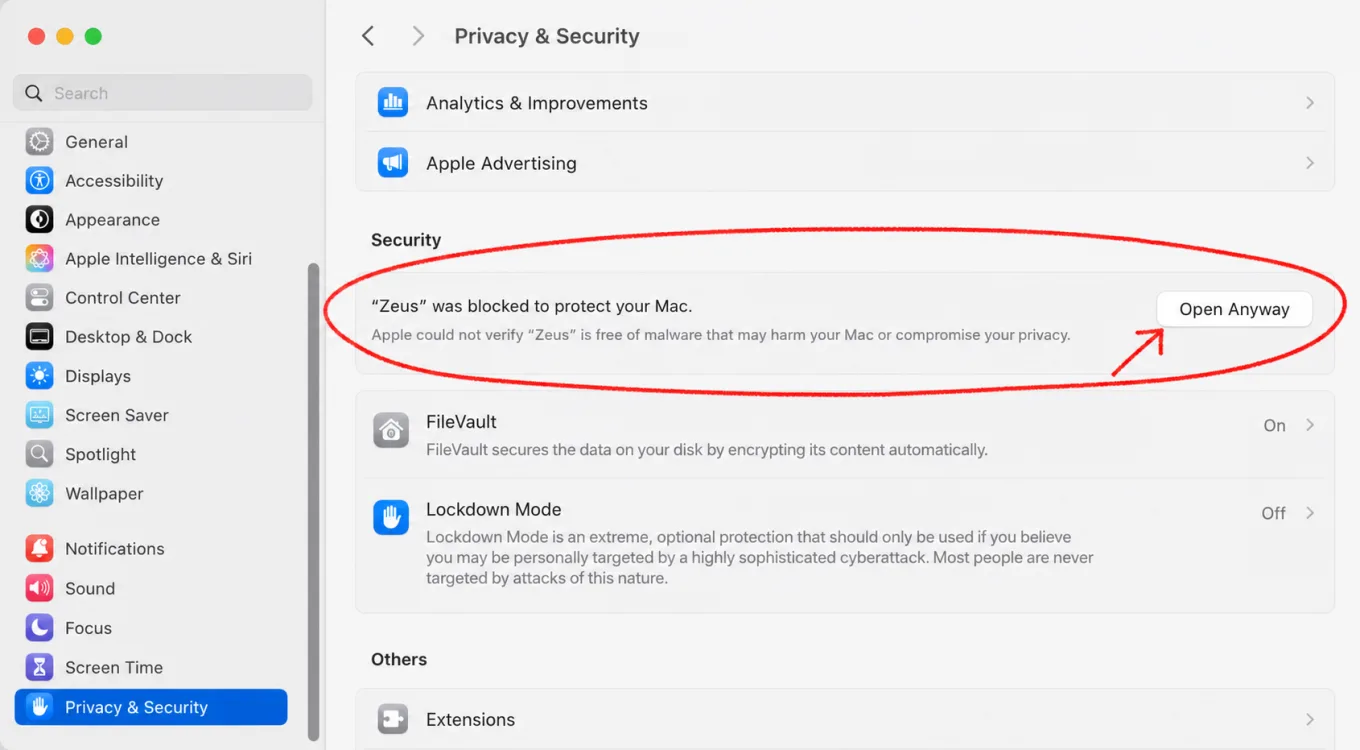
- Authenticate with Touch ID or your Mac login password, then confirm Open Anyway once more. Zeus should launch and remain approved for later use.
If the Zeus message is missing, try opening the app once more and return to Privacy & Security. If macOS reports that the app is damaged, delete that copy and download the DMG again from the official release instead of bypassing the message.
Why this warning appears
Apple has not notarized v0.3.0, so Gatekeeper cannot verify it with Apple. Zeus does not ask you to turn Gatekeeper off; the steps above create an exception for this copy of Zeus only. The in-app updater also remains disabled until a Developer ID signed and notarized release ships.
Read the security notes for the current trust model and download policy.